Inventory management

Bulk update inventory with one request

Name the products and the number, and StoreDesk shows every variant's new stock on one review card before it sets them all together.

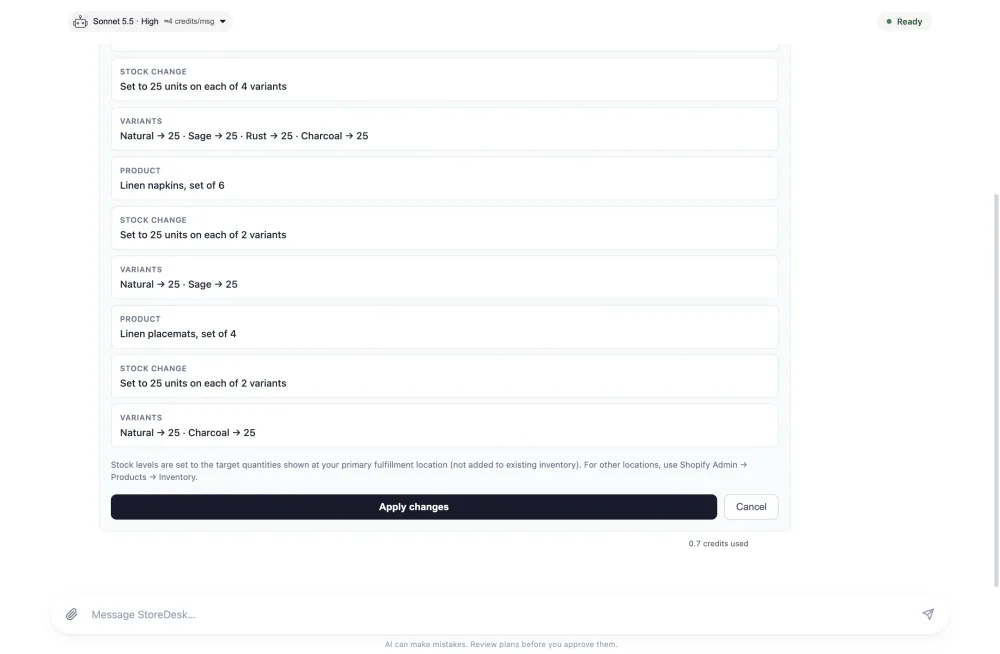
StoreDesk review card setting stock to 25 units on each variant of three table linen products, listing every variant and its new count, with an Apply changes button

01Overview

Bulk inventory update in StoreDesk

When a delivery arrives or you count the shelves, you need to bulk update inventory: new numbers on many variants at once. Doing it one product at a time in the admin is slow. In StoreDesk you type the change in Store Agent, for example "set stock to 25 on each variant of the Linen napkins, set of 6 and the Linen placemats, set of 4". It finds the products, lists every variant with its new count on a review card, and sets them together once you approve.

You always give the numbers. StoreDesk sets them at one location and never makes up a quantity.

How to update inventory in bulk by asking

Write the request the way you'd say it to a colleague. One request can cover several products, every variant of a product, or one size or colour. StoreDesk looks each product up by its title and lists what it found on the review card.

  • "Set stock to 25 on each variant of the Linen tote bag"
  • "Set the Linen apron in Sage to 0"
  • "Set the Medium and Large Linen shirt to 8 each"
  • "Set 35 units in total on the Linen napkins, set of 6, split across its variants"
StoreDesk
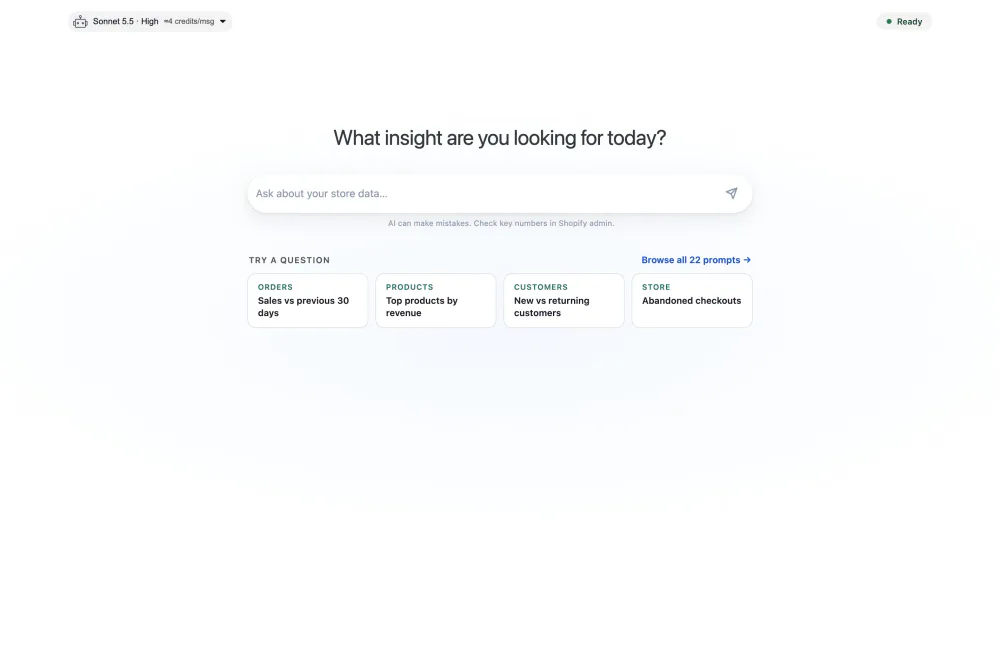
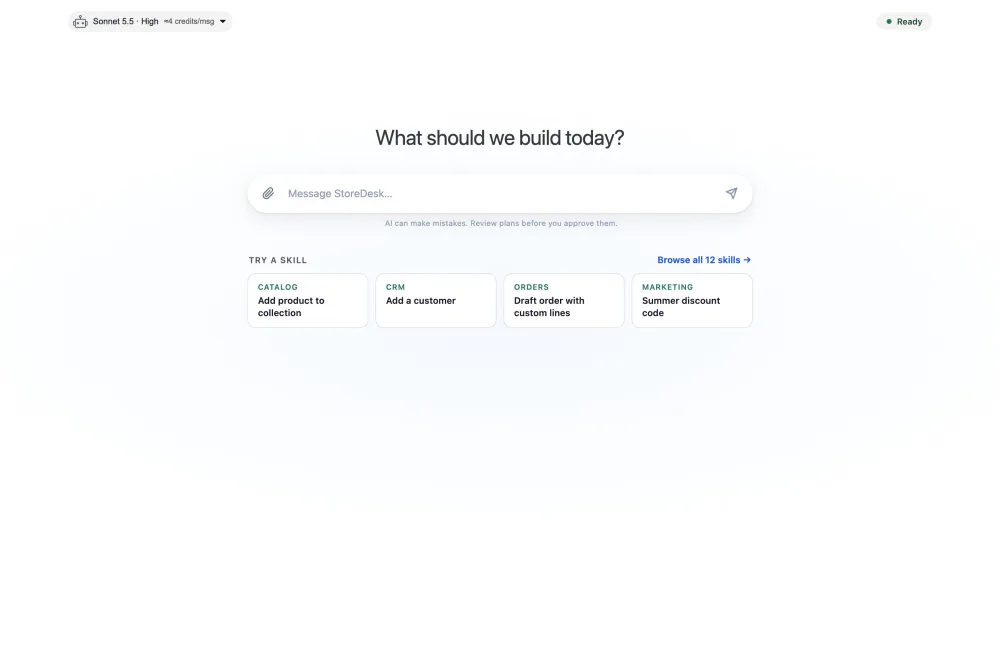
StoreDesk Store Agent welcome screen with the message box where you type a stock request

Check every variant before it changes

The review card groups the change by product: the stock change in words ("Set to 25 units on each of 4 variants") and every variant with its new number. A note under it says the numbers are set at your primary fulfillment location, not added to what's there.

If a product or a count is wrong, cancel and send a corrected request.

Set stock quantity, don't add to it

StoreDesk writes the number you end with. If a variant has 7 and you ask for 25, it becomes 25.

It reads the current count first, and if stock moved in the meantime, for example because an order came in, that update fails instead of overwriting the new count. Variants that weren't tracked get inventory tracking turned on before the count is set.

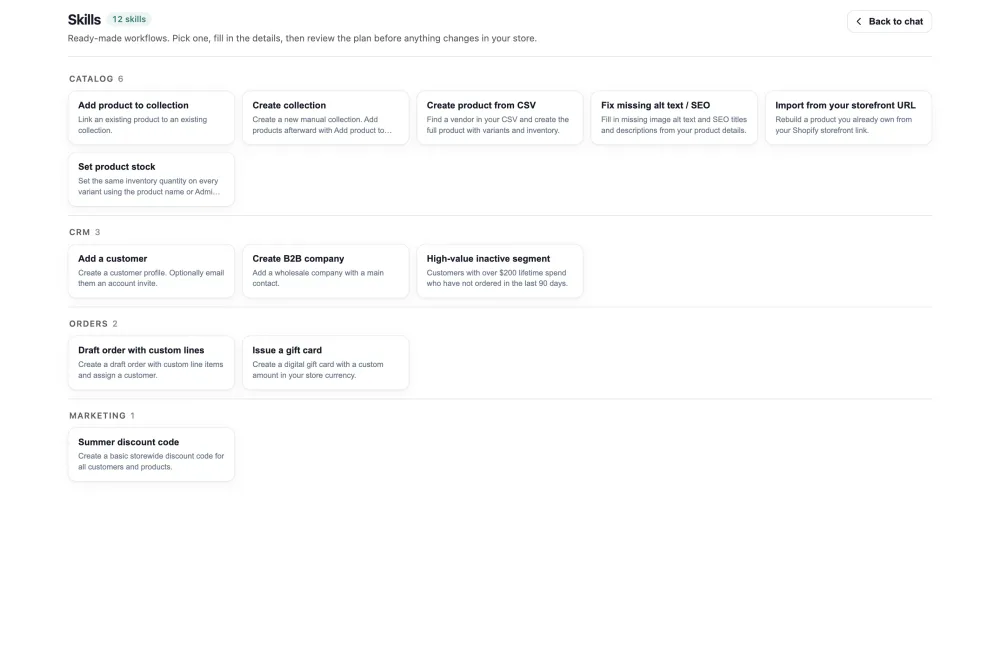
Use the Set product stock skill

Under Catalog in Skills, Set product stock asks for the units per variant and a product name or its admin link, then sends the request for you. It suits the common case of one product getting the same count on every variant, and you still check the review card before anything changes.

StoreDesk
StoreDesk skills library with ready-made skills grouped into Catalog, CRM, Orders and Marketing, including Set product stock

Restock straight from the low stock report

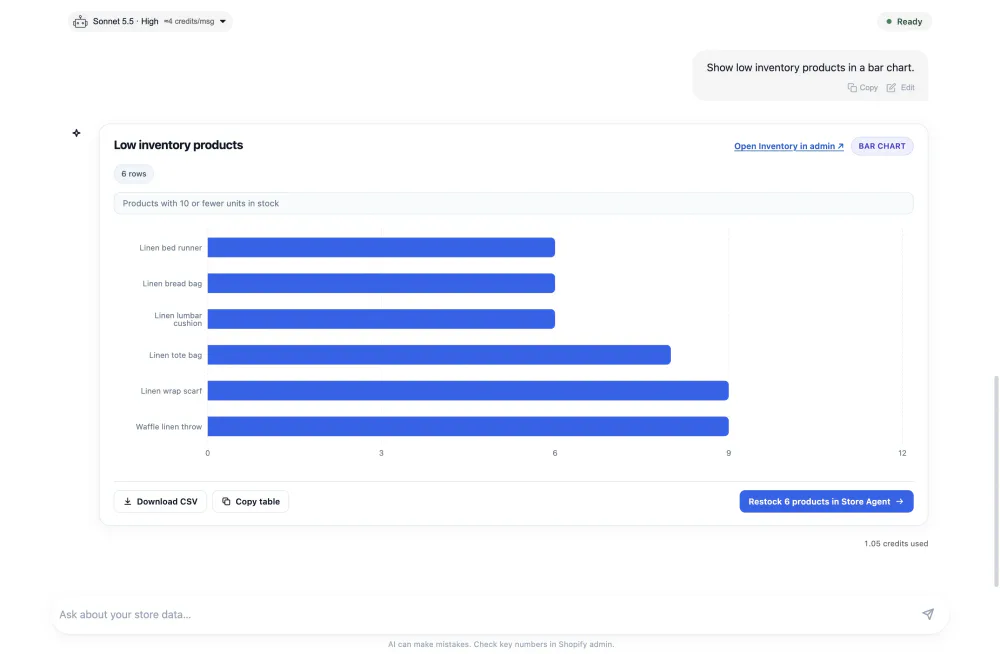
In Store Analytics, ask for low inventory products. The Restock button under the chart opens Store Agent with a request for every product listed, which you can edit before sending. The review card then shows each variant's new count, as with any other stock change.

StoreDesk
StoreDesk Store Analytics bar chart of six products with 10 or fewer units in stock, with Download CSV, Copy table and a Restock 6 products in Store Agent button

Update inventory with a CSV? Not yet

StoreDesk reads CSV files to create new products, not to change stock on products you already have. If your counts are in a spreadsheet, paste the product names and numbers into the chat as a list and check the card as usual. Product names need to match your store's titles closely, or StoreDesk asks which product you mean.

02How it works

How to use bulk inventory update in 4 steps

What you ask StoreDesk, what it shows you and what you approve, in order.

  1. Open Store Agent

    It's in the StoreDesk app inside your Shopify admin.

  2. Name the products and numbers

    Several products, whole products or single variants, in one message.

  3. Check the review card

    Every variant is listed with the stock it will have.

  4. Apply changes

    StoreDesk sets the new counts at one location.

04Get started

Try bulk inventory update on your store

Add StoreDesk to your store and ask for bulk inventory update in plain English. Nothing changes until you approve the plan.

05FAQ

Bulk inventory update questions

Answers to common questions about bulk inventory update in StoreDesk.

Still have a question?

Write to us and a person answers.

How do I update inventory in bulk?

Name the products and the new count in one request, and approve the review card that lists every variant. StoreDesk then sets all of them together at one location. In our demo store, setting 8 variants across 3 products used about 0.7 credits.

How do I set stock to zero for a collection?

Name the products in that collection and ask StoreDesk to set every variant to 0; the review card lists each one before anything changes. Products at 0 stay published unless you hide them in your admin.

How do I update stock from a spreadsheet?

StoreDesk can't read stock from a CSV file yet, so paste the product names and quantities into the chat as a list instead. It matches each name to a product, shows the new counts on a review card, and sets them after you approve.

Does StoreDesk add to my stock or replace it?

It replaces it: the number you give becomes the available stock at that location. The review card says so under the list of variants.

Which location does a bulk inventory update change?

Each variant is updated at the location it's already stocked at, or at your first location if it has none. Stock at other locations isn't touched.