Customer segmentation you build by asking

Customer segmentation without filter syntax: describe the customers you want, like everyone who spent over $200 and hasn't ordered in 90 days, and StoreDesk builds the segment in your admin once you approve it.

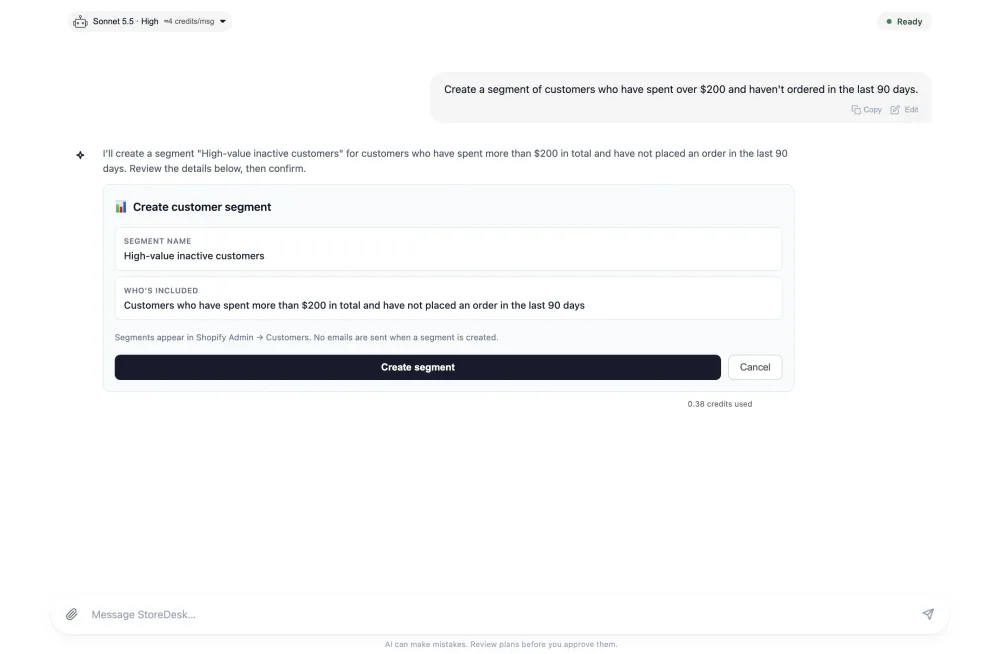
StoreDesk review card for a High-value inactive customers segment, customers who spent over 200 dollars and have not ordered in 90 days, with a Create segment button

01What it is

Customer segmentation sorts your customers into groups that act alike. StoreDesk writes the segment filter for you.

Big spenders, repeat buyers, people who signed up but never ordered, regulars who went quiet: each group can get a message or offer that fits it, instead of one email for everyone. Your Shopify admin already has segments, but building one means writing a filter in its own query language. In StoreDesk you type the group in the Store Agent chat, check the plain-English summary on a review card, and approve. The segment appears under Customers in your admin, and your admin keeps it up to date as customers order.

Customer segmentation
  • Big spenders
  • Repeat buyers
  • Lapsed customers
  • New subscribers
  • Approve first

02How it works

Build a customer segment in three steps

Open Store Agent, describe the group, check the card and approve. This example builds a segment of high-value customers who stopped ordering.

01 · Ask

Describe the group

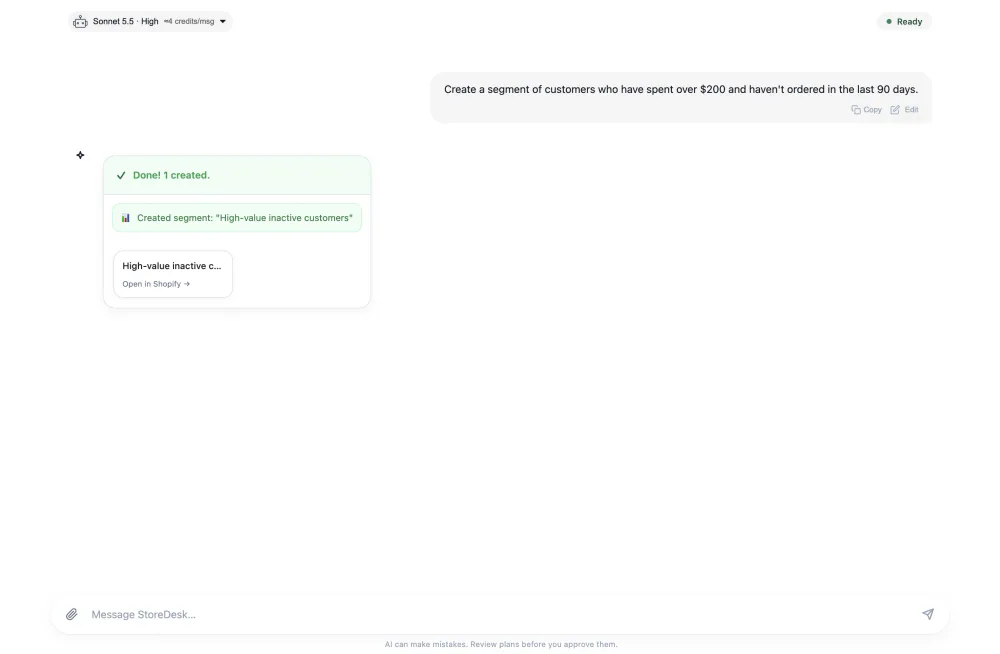
Type it in your own words. StoreDesk turns it into a segment filter on lifetime spend, number of orders, date of the last order or email subscription, and suggests a name.

  • "Create a segment of customers who have spent over $200 and haven't ordered in the last 90 days."
Ask1 / 3
StoreDesk review card for a High-value inactive customers segment, customers who spent over 200 dollars and have not ordered in 90 days, with a Create segment button
02 · Review

Check who's included

The review card shows the segment name and a "Who's included" line in plain English, so you can check the logic without reading the filter. If the name or the group is wrong, cancel and say what to change.

  • The card says no emails are sent when a segment is created
Review2 / 3
StoreDesk review card for a High-value inactive customers segment, customers who spent over 200 dollars and have not ordered in 90 days, with a Create segment button
03 · Approve

Click Create segment

The segment is saved under Customers in your admin, next to your other segments, and the result links straight to it. Creating a segment sends no email to anyone; when you're ready to reach the group, pick the segment in your email or marketing app.

  • Open in Shopify takes you to the segment and who's in it
Approve3 / 3
StoreDesk result log confirming the High-value inactive customers segment was created, with a link to open it in the admin

03Examples

How to segment customers: segments worth starting with

Each card is a request you can type as written. Change the amounts and days to suit your store.

  1. Spend

    High value customers

    Your biggest spenders, for a thank-you or early access to something new.

    • "Segment customers who spent over $500"
  2. Spend and orders

    VIP customer segment

    Repeat buyers who also spend the most.

    • "Segment customers with at least 5 orders who spent over $1,000"
  3. Last order

    Win back inactive customers

    Past buyers who went quiet, for a reminder or a reason to come back.

    • "Segment customers who spent over $200 and haven't ordered in 90 days"
  4. Subscription

    New subscribers

    People on your email list who haven't bought yet.

    • "Segment email subscribers who have never ordered"
  5. Orders

    One-time buyers

    Customers who ordered once and could be nudged towards a second order.

    • "Segment customers with exactly 1 order"

04Customer data

StoreDesk never reads customer names, emails, phone numbers or addresses. A segment is a rule, so it doesn't need them.

A segment filter says who belongs, such as "amount spent over $200", and your admin works out the members. StoreDesk only writes that rule. It doesn't create, edit or tag customer profiles and doesn't set up B2B companies; those stay in your admin's Customers section.

06FAQ

Customer segmentation questions

Still have a question?

Write to us and a person answers.

How do I segment customers?

Pick a rule that splits customers into groups you'd treat differently, such as total spend, number of orders or time since the last order, and save each rule as a segment. In StoreDesk you type the rule in plain words and approve the segment it builds. Good first segments are high spenders, repeat buyers and customers who stopped ordering.

How do I find high value customers?

Make a segment of customers whose lifetime spend is above an amount that's high for your store, such as $500. Ask StoreDesk "segment customers who spent over $500" and approve the card. Pick the amount from your own numbers: a store with $30 orders and one with $300 orders need different lines.

How do I find inactive customers?

Make a segment of customers whose last order is older than a set number of days, such as 90. In StoreDesk, ask for "customers who haven't ordered in 90 days", and add a spend rule if you only want past buyers worth winning back.

What are customer segments?

Customer segments are saved groups of customers who match a rule, like spent over $200 or no order in 90 days. They update as customers order, and you can use them to target emails or offers to the right people.

Does StoreDesk send emails to a segment?

No, StoreDesk only creates, edits and deletes segments; it sends no emails or campaigns. Use the segment in your email or marketing app to reach the group. Deleting a segment removes only the segment, not the customers in it, and can't be undone.

Can StoreDesk see my customers' names or emails?

No, StoreDesk never reads customer names, emails, phone numbers or addresses. It writes the segment rule, and your admin works out which customers match.

How many credits does a segment cost?

A segment request costs a fraction of a credit: the one in the screenshots used about 0.4 credits on the default model. 1 credit is 1 cent of AI cost, and the exact amount depends on the model you pick and the length of the request.